
So, what exactly is a Zip file
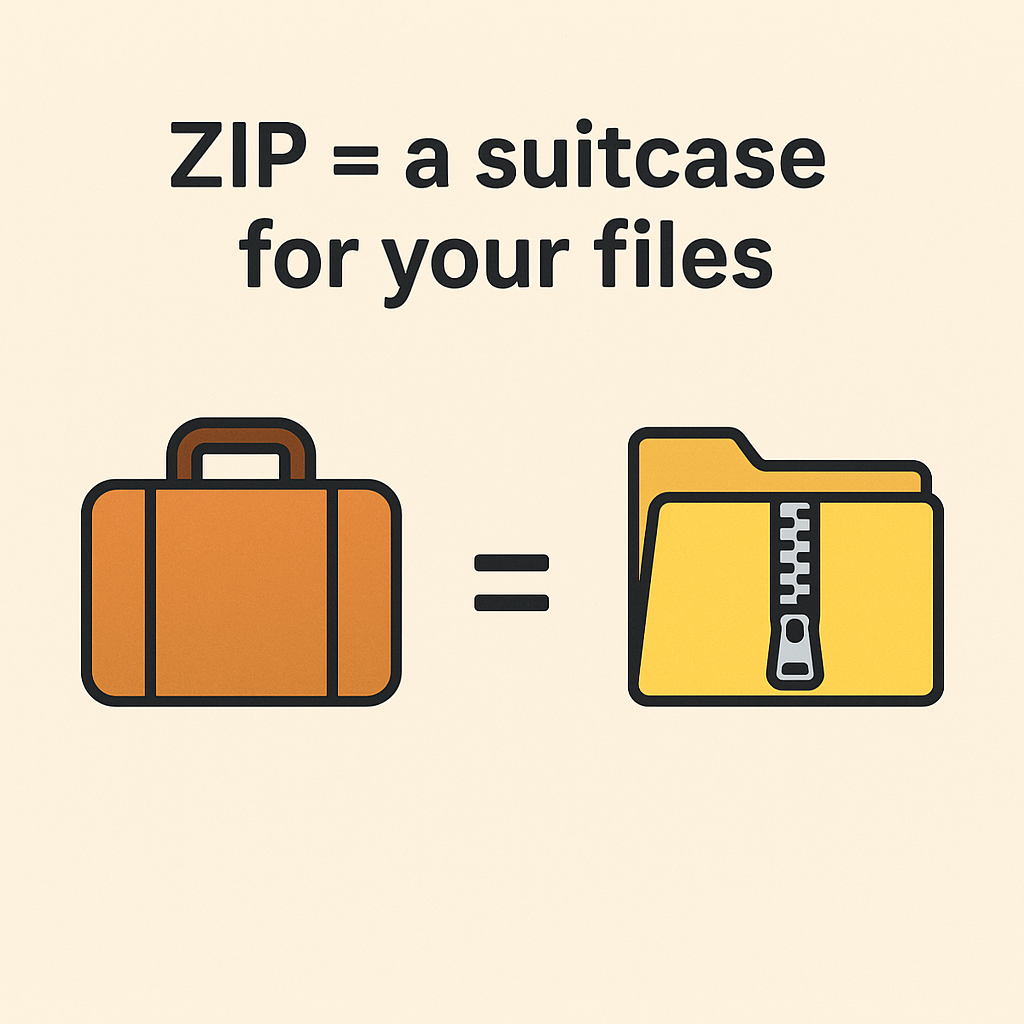
A ZIP file is like a digital suitcase.
You can put lots of files (documents, pictures, videos, folders, etc.) inside it.
The suitcase “zips up” to make the files smaller and easier to send, download, or store.
Instead of sending 10 separate files, you just send one ZIP file.
Why use it?
Saves space (compresses files)
Keeps multiple files together in one package
Easier to share (email, upload, download)
Sometimes used to protect files with a password
3. Creating a ZIP File (Packing Files)
On Windows
- Select the files/folders you want, Click the first file, then hold down control and select the rest of the files you’re wanting to zip
- Right-click → Send to → Compressed (zipped) folder.
- A new ZIP file will appear — you can rename it.
📸 Looks like a new “zipped folder” sitting next to your files.
On Mac
- Select the files/folders you want.
- Right-click → Compress.
- A ZIP file appears in the same location.
On Phone
- Use your file manager app (some have a Compress option).
- Or use a free ZIP app to create one.
4. Quick Tips
- 📧 ZIP files are great for emailing lots of documents at once.
- 🔒 You can add a password with special ZIP programs (like 7-Zip or WinRAR).
- 🗑 Always extract before editing files inside, otherwise changes may not save properly.
That’s it! You now know how to create ZIP files like a pro.
How to open a ZIP file
(Think of it as unzipping the suitcase so you can use what’s inside.)
- On Windows:
- Double-click the ZIP file → it opens like a folder.
- To fully extract, right-click → “Extract All…” → choose where you want the files.
- On Mac:
- Double-click the ZIP file.
- It automatically creates a folder with all the contents.
- On Phones (iPhone/Android):
- Tap the ZIP file. Many phones now unzip automatically.
- If not, download a free app like WinZip or RAR from the app store.
Another note: Sometimes when you request a free guide or have purchased a product, when you click the URL, it will download immediately and deposit into wherever you have indicated in your settings such as ‘downloads’.
You can then move that file to your preferred folder and extract.
ZIP Files – Quick Cheat Sheet
Step Action
1 ZIP = a suitcase for your files (one package, smaller size)
2 Windows: Right-click ZIP ® Extract All
3 Mac: Double-click ZIP ® Folder appears
4 Phone: Tap ZIP ® Folder appears
5 Windows: Select files ® Right-click ® Send to ® Compressed
6 Mac: Select files ® Right-click ® Compress